You hire someone new. The first month is mostly explaining things: how you organize the shared drive, your tone in client emails, the format of your weekly status report, the order your invoices follow. None of it is hard — it's just context you have to transfer once so it stops getting re-transferred forever.
Anthropic's framing for a skill is exactly this: "Building a skill for an agent is like putting together an onboarding guide for a new hire."
A skill is a small folder of plain-English instructions (and optionally some scripts and templates) that tells Claude how your business does this specific kind of work. Once it exists, Claude uses it automatically when relevant — or you can call it directly — and you stop re-explaining the same thing every Monday.
In Anthropic's own words: "Skills are folders of instructions, scripts, and resources that Claude loads dynamically to improve performance on specialized tasks."
Why this matters
When Rakuten built skills around their accounting workflows, Anthropic reported: "What once took a day, we can now accomplish in an hour." Box uses skills to turn stored files into PowerPoint, Excel, and Word deliverables. Notion uses them to move users from question to action faster.
Same pattern in every case: capture a recurring task once as a skill, then stop spending the cognitive overhead of describing it each time. For an SMB owner, this is the difference between Cowork being "a useful assistant" and Cowork being "the way work gets done in your business."
Built-in skills — the freebies that activate automatically
You're probably already using skills without thinking about it. Anthropic ships built-in skills for Excel, Word, PowerPoint, and PDF — they activate automatically when relevant. When you ask Cowork to "build a spreadsheet with these columns," the Excel skill is doing the formatting and formulas. When you ask for a "polished one-pager," the Word skill is producing the.docx file.
You don't install these. They're always on. They are why Cowork can produce a real Excel file with working formulas rather than a screenshot of cells.
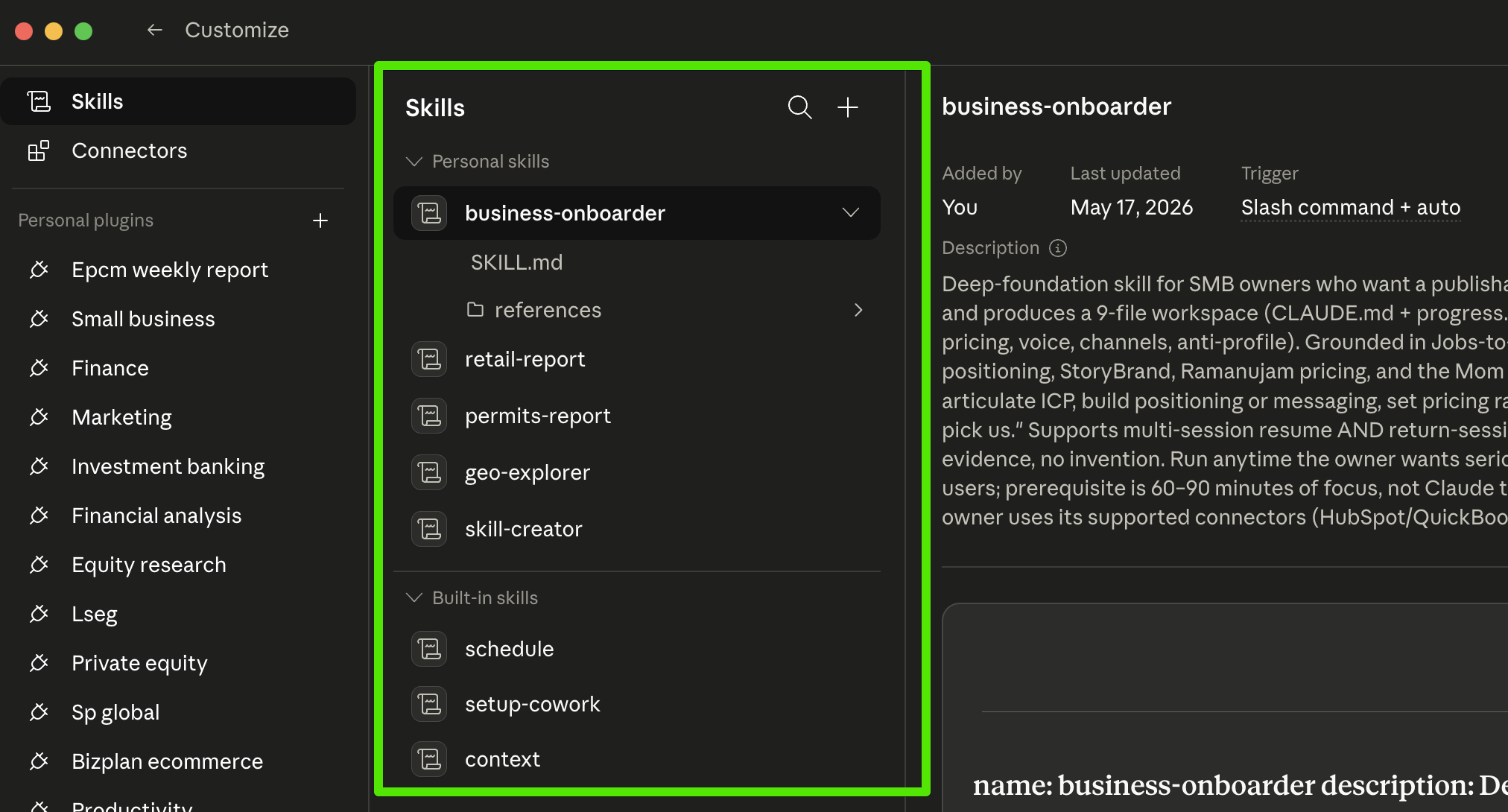
schedule) are always available; personal skills are ones you've authored or installed.
How a skill actually gets invoked
Two ways. Most of the time you won't think about it.
Automatic. Claude reads every available skill's description at session start, and when you ask for something that matches, the relevant skill loads on its own. "Build me a spreadsheet of these expenses" triggers the Excel skill without you naming it.
Manual, with a slash. Type /skillname in the chat input to invoke a skill explicitly. A useful built-in example: /schedule is itself a skill that walks you through creating a scheduled task via conversation. Once you've authored your own custom skill, you'll invoke it the same way — /your-skill-name.
The two paths coexist. Let Claude pick automatically most of the time; reach for the slash when you want to be deliberate.
Three paths to a custom skill
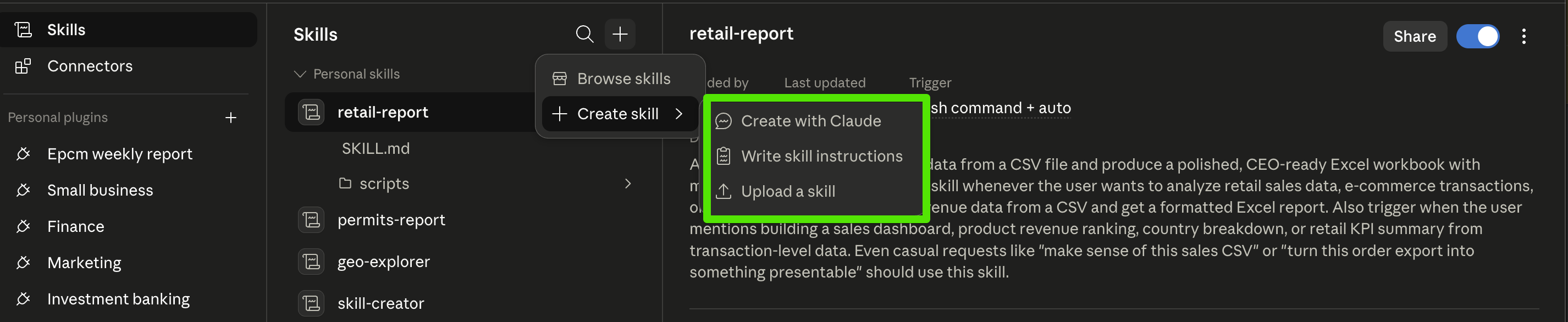
If the built-ins don't fit, you build a custom one. All three paths live in the same place — Customize → Skills, click the + button, choose Create skill, and you'll see three options:
1. Create with Claude — the easy path for most readers.
Describe the workflow you want to capture — "I want a skill for turning client meeting notes into a one-page status update in our standard format" — and Claude interviews you, asks for examples, then generates the skill's instructions and any supporting files for you. When it's ready, a Save skill button appears in the chat. Click it and the skill installs directly into your Skills list — no upload step, no manual file handling. (You'll also see a Show in Folder option if you want to peek at the generated files.)
If you've never written a line of code, this is your path. The skill ends up the same as a hand-authored one; you just got there by conversation instead of by editor.
2. Write skill instructions — for when you already know what you want it to say.
Cowork opens a built-in authoring view where you write the skill's instructions directly — name, description, body. No external editor required, but you're writing the prose yourself rather than letting Claude generate it. Useful when you have a clear spec in your head and don't want the back-and-forth of an interview.
3. Upload a skill — for skills built elsewhere.
If you have a pre-built skill (someone shared a ZIP with you, or you built one in a separate environment), pick the ZIP and Cowork installs it. This is how you'll install the Business Onboarder Skill in Module 5 — same flow.
For most readers of this course, path 1 is the right answer. You don't need to know what a SKILL.md file is, what YAML frontmatter looks like, or how progressive disclosure works — Claude handles all of that. If you ever want to peek under the hood, the skill's files are right there in the Skills list after it's created; click in and you'll see the SKILL.md Claude wrote on your behalf.
A fourth option lives outside the + menu: edit an existing skill by clicking it in the Skills list and modifying the instructions in place. Use this when a skill almost does what you want and you just need to tighten the description or tweak the body.
What makes a good skill — best practices in plain English
Anthropic publishes a detailed authoring guide. The five rules that matter most for non-technical readers:
- Body under 500 lines. A long skill confuses Claude and wastes tokens. If your SKILL.md is getting big, split it — move detailed reference material into separate files in the same skill folder.
- Description should include both what and when. "Generates a Friday client status update from
/Client-Notes/this-week" — Claude reads the description to decide when to use the skill, so be specific about the trigger. - Write the description in third person. "Generates a status update," not "I generate status updates" or "You can use this to…"
- Name in gerund form, lowercase, hyphenated.
generating-status-updates, notStatus_Update_Tool. Max 64 characters. - Don't over-explain. Anthropic's own principle: "Default assumption: Claude is already very smart. Only add context Claude doesn't already have." You don't need to teach Claude what a Word document is. You DO need to tell it what your status updates look like.
The nudge-Claude move. When you build a skill via the conversational path and the output feels off — bloated, too generic, not matching your voice — say this back to Claude:
"Rewrite this skill following Anthropic's best practices: keep the body under 500 lines, write the description in third person with both what and when, use a gerund-form name, and don't over-explain anything Claude already knows."
That one instruction will tighten a sloppy first draft into something publishable. Most readers won't know they can do this — but Claude knows the rules and will apply them when asked.
Plugins: skills bundled together
You'll see "Plugins" in your Cowork sidebar alongside Skills. A plugin is a bundle: skills + connectors + sub-agents packaged into one install, pre-configured for a specific function.
Cowork ships a plugin library across sales, finance, legal, marketing, HR, engineering, design, operations, and data analysis. Anthropic's Claude for Small Business is delivered this way — pre-built workflows you install as plugins rather than authoring from scratch.
The mental model: if a single skill is one capability (e.g., "generates status updates"), a plugin is a starter kit for an entire function ("everything an HR team would want, pre-configured"). Install via Customize → Browse plugins → Install.
Things you'll actually hit
Three realities Anthropic's docs don't surface clearly, learned from running this:
1. Skills don't auto-sync between Cowork and Claude Code.
Anthropic says skills "work identically across Claude.ai, Claude Code, and API." That's true about format compatibility — the same SKILL.md works in either environment. It is not true about automatic propagation. Cowork stores your skills in your Anthropic account (which is why they sync to Claude.ai web — same account, same cloud). Claude Code stores skills on your local filesystem at ~/.claude/skills/ or .claude/skills/<project>/. Different storage layers. A skill you created in Cowork won't appear in Claude Code, and vice versa — you have to manually copy it.
2. Some skills won't run in Cowork because the environment is different from Claude Code's.
Cowork and Claude Code use different isolation models, and the difference matters in practice.
- Cowork runs your skill's commands inside an isolated Linux virtual machine — a separate operating system, fenced off from yours, with a fixed pre-installed package set and no ability to install new packages mid-task.
- Claude Code runs skills directly on your local machine — your own Mac, Windows, or Linux box. It uses OS-level sandboxing to restrict what bash commands can touch (filesystem and network boundaries you configure), but it's not a separate VM.
The practical implication: in Claude Code, your skill can use any tool you've already installed on your machine — if you have Playwright or Chromium installed locally, a skill that needs a headless browser just works. In Cowork, that same skill fails, because Cowork's VM doesn't ship with those binaries and you can't install new packages from inside a task. The Cowork-supported way to do browsing is Claude in Chrome — Claude operates your Chrome window with your existing sessions — not a headless browser inside the VM.
The principle: before porting a skill between Claude Code and Cowork, check what runtime it depends on. If it needs a local tool that Cowork's VM doesn't include, it won't work in Cowork.
3. Output quality is iterative, not magical.
A skill is an instruction set. It doesn't override Claude's reasoning or fix bad inputs. If your reference template is messy or your prompt is vague, the skill's output reflects that. Treat the first few runs as drafts. Tighten the description, the example outputs, and the reference materials based on what comes back. Expect 2–3 rounds of refinement before a skill produces output you'd send without changes.
When NOT to make a custom skill
Apply Module 6's Build / Buy / Skip framing:
- A built-in or installed skill already does the job → use it; don't author your own.
- A workflow shows up twice a year → Skip. Authoring a skill for it costs more than just typing the instructions when you need them.
- The workflow keeps changing → Skip until it stabilizes. A skill captures a recurring pattern; if your pattern isn't recurring yet, you're capturing noise.
- Your stack matches Anthropic's Claude for Small Business plugins → try the plugin first. Build your own only when the plugin doesn't fit your specific way of working.
What's next
Module 4 covers five concrete workflows you can run today. Most of those become more useful when captured as custom skills once you've run them a few times — that's how a "things I prompt Cowork to do" practice becomes "things my business does on its own."
Module 5 introduces the Business Onboarder Skill — a custom skill specifically designed to capture your business context (your voice, your customers, your offerings) so every subsequent skill you author can reference it instead of re-establishing context every time.