Twenty minutes from here, you'll have Cowork open, you'll have done one useful thing, and you'll know your way around. This module is the doing module.
What you need
- A Mac or Windows computer. Cowork runs through the Claude Desktop app — not in a browser. You can send tasks from your phone via Dispatch (more on this below), but the work itself runs on your desktop.
- A paid Claude plan: Pro, Max, Team, or Enterprise. Cowork isn't on the Free plan. If you're on Pro ($17/month annually), you're set.
- Claude Desktop installed and signed in. If you don't have it yet, grab it at
claude.com/download.
That's everything. No special configuration, no developer setup, no terminal.
Open Cowork for the first time
- Open Claude Desktop. It opens like any other app on your computer.
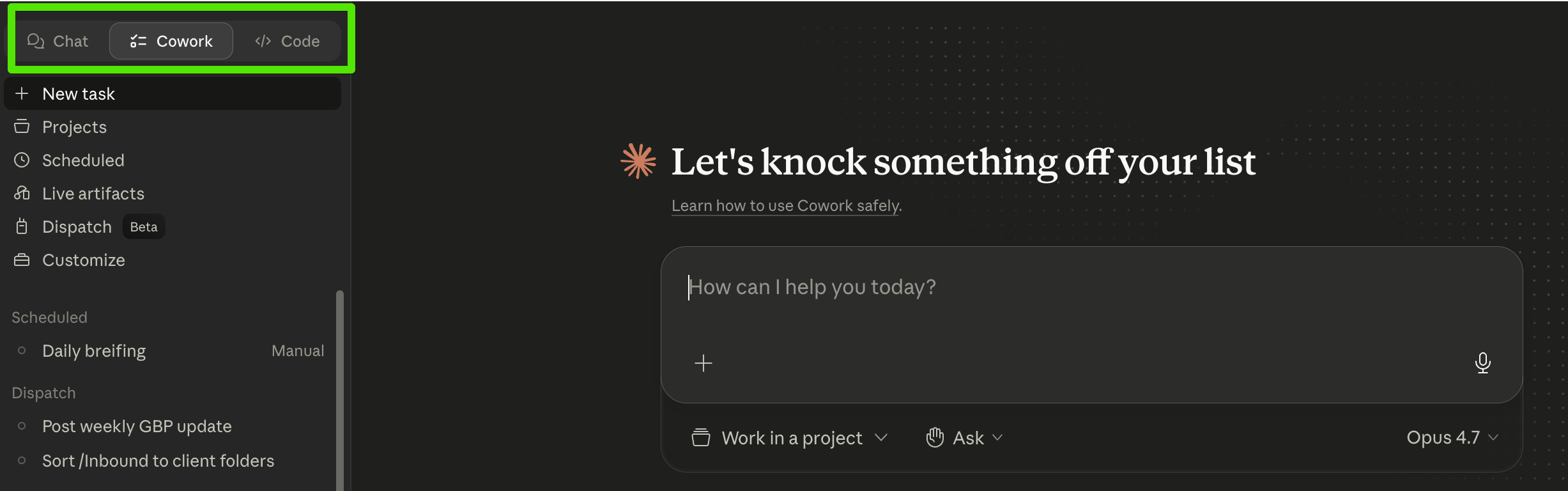
- Find the mode selector at the top. You'll see three tabs side-by-side: Chat, Cowork, and Code. Chat is the conversational interface you already know. Cowork is the agentic one we covered in Module 1. (Code is for developers; you can ignore it.)
- Click Cowork. That's the switch. You're now in Tasks mode.
A 30-second tour
Left sidebar, top to bottom:
- New task — start a new piece of work
- Projects — group related tasks so memory and context persist across them
- Scheduled — see anything Cowork is set to run on a schedule
- Live artifacts — persistent dashboards and trackers Claude builds; reopen and refresh them anytime to pull current data
- Dispatch (Beta) — assign tasks from your phone (more on this below)
- Customize — where Skills, connectors, and plugins live (we go deep on Skills in Module 3)
Main area: a single prompt — "How can I help you today?" This is where you describe what you want done. Not what do you want to know — what do you want done. The prompt box has a + button — that's how you add resources to a task (folders, images, Skills, connectors, or plugins) before you hit send.
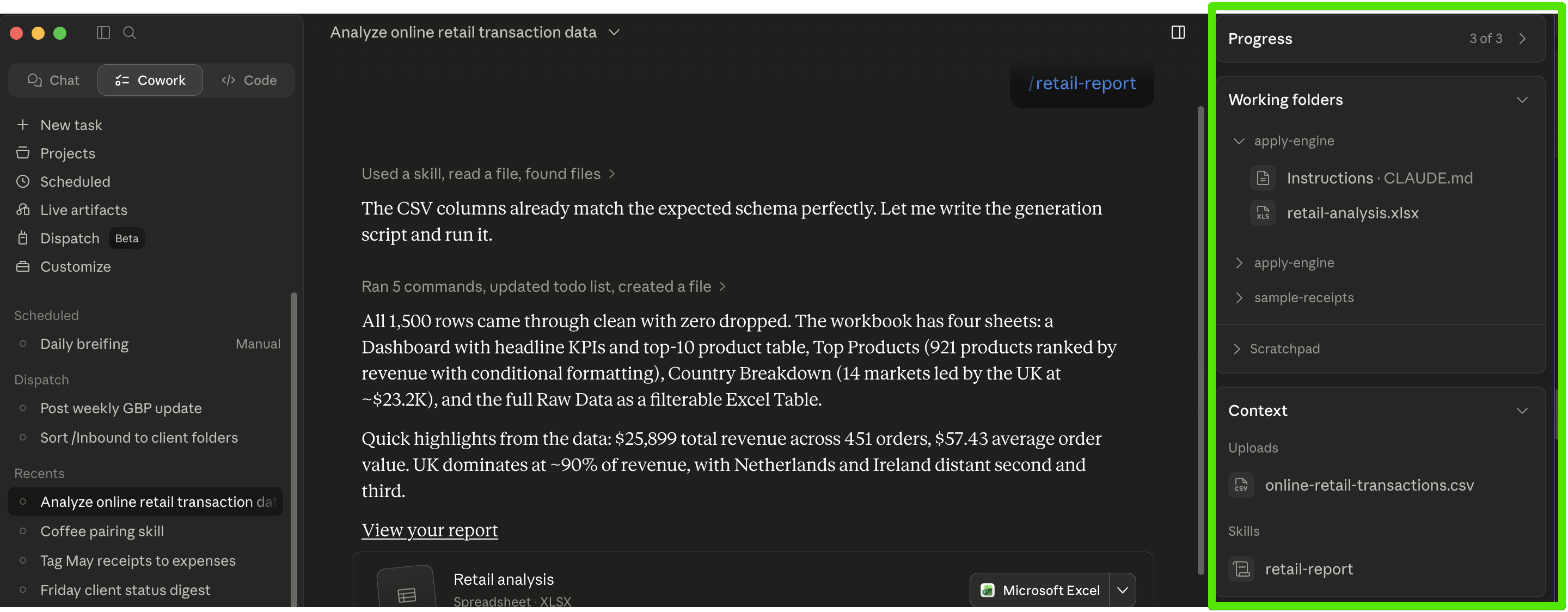
Right side, once a task is running, you'll see three sections:
- Progress — a step-by-step indicator showing Cowork's plan as it executes
- Working folder — the folder you've attached to the task. (If you've attached multiple, it becomes "Working folders" with the list.) Cowork can read and write here.
- Context — tracks tools and referenced files used in this task.
Run your first task
A small one, to get the feel. Pick something low-stakes:
- Make a fresh folder on your desktop. Call it
cowork-test. Drop two or three PDFs into it — old invoices, receipts, anything you have lying around. - In the Cowork task input, type:
"Read every PDF in my Desktop folder called
cowork-testand create a small spreadsheet listing the total, vendor, and date from each one. Save the spreadsheet in the same folder."
- Click submit. Cowork starts the task. You'll see its plan and progress appear in the right panel as it works — the steps it's taking, what it's reading, what it's writing. If your prompt is ambiguous — say, you ask Cowork to "clean up my Downloads folder" without saying what clean up means — Cowork pauses and asks for clarification before starting. In "Ask before acting" mode (covered below), it also pauses at sensitive moments (file deletions, connector calls) for your explicit approval; click Allow to continue or Deny to refine.
- Watch it work. Cowork reads the PDFs, extracts the data, builds the spreadsheet, and saves it to the folder. The whole thing takes a minute or two. The file appears in your folder when it's done — no download, no copy-paste.
That's the loop. Describe the outcome → submit → watch it execute → check the result. You just did the thing Module 1 promised: gave Cowork a goal, got back a finished deliverable.
Permission modes — choose how much oversight you want
Cowork has two modes, and it's worth knowing the difference:
- Ask before acting. Claude pauses for your approval at each step — connector use, file changes, deletions. Recommended when you're learning, or when the task touches important files.
- Act without asking (currently in Beta). Claude uses your connectors (Gmail, Slack, etc.) and acts without pausing. There's a separate sub-toggle for Chrome that lets Claude browse and act on web pages without pausing. Better for routine tasks where you know the shape of the work.
One non-negotiable. Permanent file deletion always requires your explicit approval. That approval prompt only appears in "Ask before acting" mode — so in "Act without asking" mode, file deletion is blocked entirely (the prompt mechanism isn't available). If you need Cowork to delete files, you have to be in "Ask before acting" mode and click Allow when prompted.
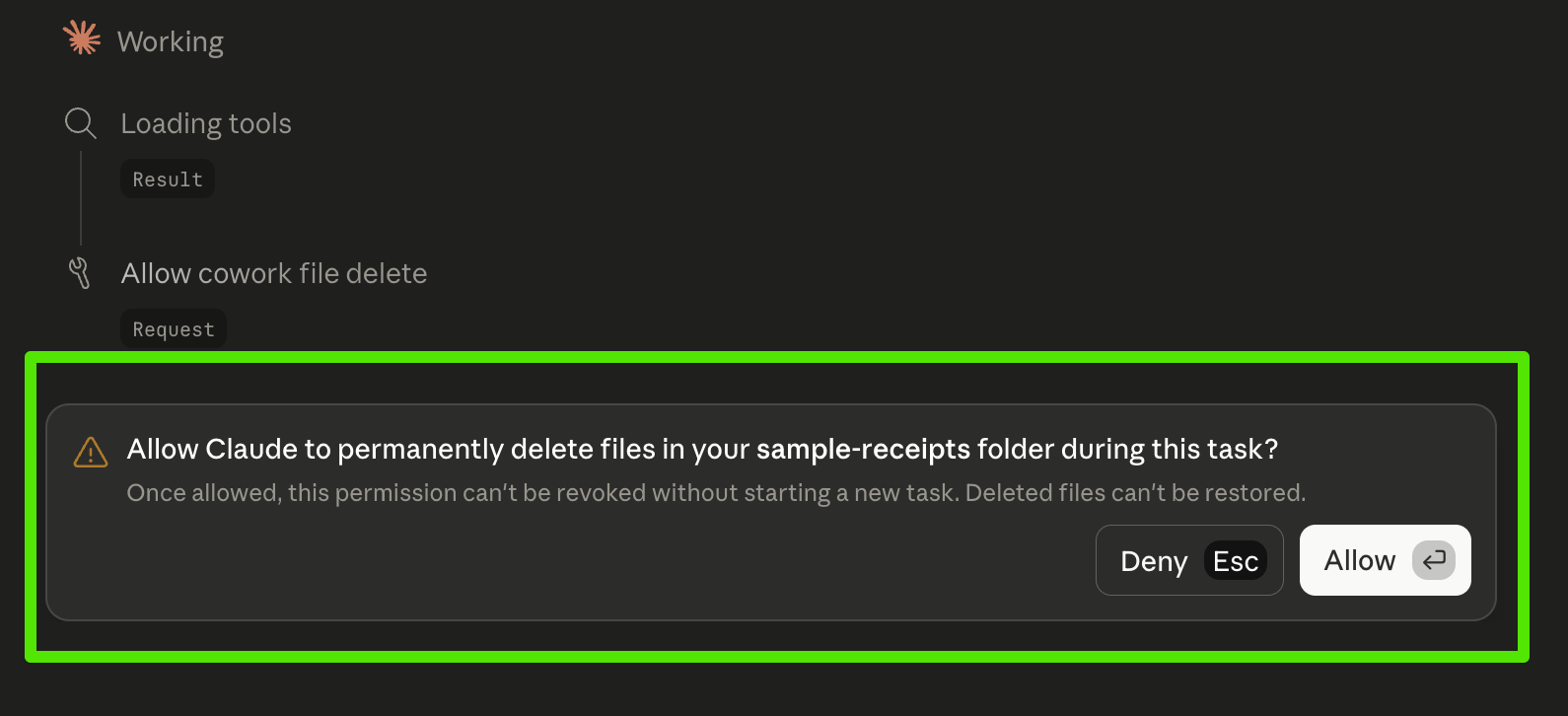
Start in "Ask before acting" for your first few tasks. Switch to "Act without asking" once you trust the patterns — and remember that any task involving deletion has to run in "Ask before acting."
The laptop-awake reality
One catch worth knowing up front: Cowork runs on your computer, not in the cloud. The Claude Desktop app has to stay open and your computer has to stay awake for scheduled tasks to fire.
The fix is built into the app. Claude Desktop has a "Keep computer awake" toggle in Settings → Desktop app → General. Turn it on. The toggle's own description: "Prevent your computer from idle-sleeping while Claude is open so scheduled tasks can run. Your display can still turn off."
The laptop-lid caveat. Even with the toggle enabled, Anthropic's docs are explicit: "Closing the laptop lid still puts it to sleep". So a 6pm task won't fire if you closed your laptop at 5pm. The toggle helps when you're at your desk; it doesn't rescue laptops that close at night.
If your computer sleeps through a scheduled time Cowork skips that run and then runs the task automatically once your computer wakes or you open the Desktop app again. Skipped runs appear in the task's history. Worth knowing when timing matters — a 9am task that was asleep through 9am may not fire until you reopen the laptop hours later. If you need to be precise, build a guardrail into the prompt itself — e.g., "Only run if it's before 5pm today; otherwise just log what was missed."
If your work pattern doesn't support a computer-left-awake-on-a-desk, scheduled tasks aren't the right fit. We cover when not to use Cowork in Module 6.
Send a task from your phone (Dispatch)
There's one more sidebar item worth flagging: Dispatch, currently in Beta on Pro and Max plans. It lets you send a Cowork task from your phone — the work runs on your desktop, and the result comes back to you when it's done. We don't go deep on it here; you'll see it again in Module 4 when we cover real workflows. For now, just know it's there.
What's running under the hood
Briefly, in case you wondered: when Cowork runs shell commands or code, those run inside an isolated virtual machine on your computer, separate from your main operating system. That's a small but important safety boundary — Cowork can act on the files and folders you've allowed, but it isn't poking around the rest of your machine.
You don't need to think about this most of the time. It's the kind of detail that matters when someone asks "is this safe?" and you want a real answer.
What's next
You have Cowork open. You've run one task. You know the layout. The next module — Skills — is where Cowork gets really useful. Skills are the building blocks that turn one-off tasks into reusable patterns your business runs every week.